
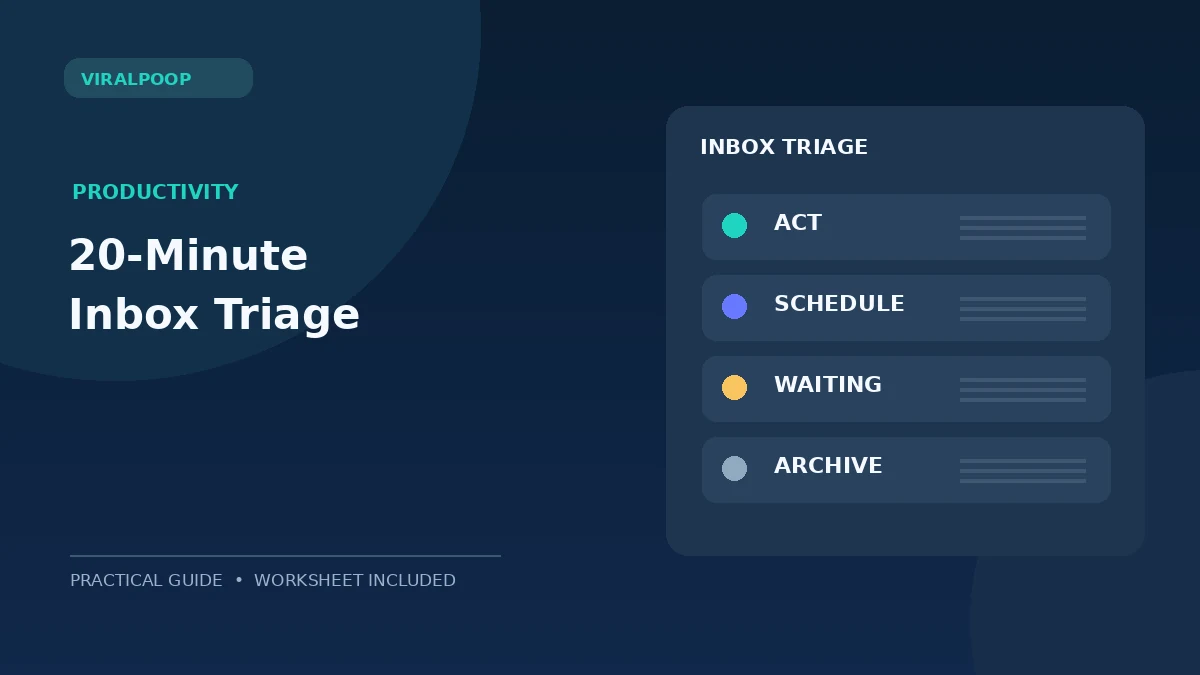
Some inboxes are full of urgent-looking messages but surprisingly few clear priorities. A 20-minute email triage workflow gives freelancers and small teams a way to separate tasks, decisions, and distractions before they consume the workday. You do not need expensive software; a mailbox, a task list, and a few predictable rules are enough to begin.
This practical guide covers the four decisions to make about each message, a timed routine, client-facing examples, a follow-up table, and safeguards for sensitive emails. The objective is not a perfect inbox count: it is knowing exactly what needs attention next.
Quick takeaways
- Process messages into four lanes: Act, Schedule, Waiting, or Archive.
- Turn substantial requests into tasks with an owner, outcome, and deadline.
- Give true emergencies a separate agreed alert path instead of monitoring email every minute.
- Verify unusual financial instructions using a trusted channel before responding.
What does email triage mean at work?
Email triage means deciding the importance, urgency, and next action for each message without repeatedly rereading the whole conversation. The message may call for a brief reply, focused work, a response from someone else, or no action at all. Sorting by arrival time alone gives equal priority to a routine newsletter and a project approval due today.
A message such as “Can you send the corrected invoice?” is a bounded task. “Please approve the revised proposal by Friday” is a decision with a deadline. “Thanks for the update” might be worth saving as a record, but it need not remain in your attention queue.
Keep work commitments in a task manager, calendar, or simple spreadsheet. The inbox is where requests arrive, not a dependable system for remembering all follow-ups. Microsoft’s 2026 guide to managing client emails similarly emphasizes turning long threads into clear next steps.
The four-lane email triage system
| Lane | Meaning | Action |
|---|---|---|
| Act | Short, actionable request that you can handle now | Reply or perform task; log result |
| Schedule | Requires deeper work or a calendar commitment | Create task, assign owner and deadline |
| Waiting | Someone else must send an asset, approve, or pay | Record dependency and follow-up date |
| Archive | Useful record but nothing to do | Label or file for later search |
These lanes are conceptual. They need not be four literal folders. Gmail labels, Outlook categories, flags, or a spreadsheet can all represent the same decisions. Start simple enough that classification takes seconds, not minutes.
One email can produce several tasks. A client might approve the design and request a separate mobile layout. The approval should be stored; the new work needs its own task and scope check. Do not mark the whole thread “done” because you answered only the easy part.
A repeatable 20-minute inbox routine
Minutes 0–2: scan for genuine exceptions
Check agreed emergency channels and messages tied to today’s deadlines. Do not classify a subject line as urgent just because it uses capital letters. If your business promises 24-hour support, define an actual on-call alert method. Routine creative work may support two or three email review windows per day instead.
Minutes 2–6: remove low-value noise
Archive informational notifications and file receipts that are already recorded. Unsubscribe from newsletters you never read. Report obvious junk using your email provider’s tools. Be cautious with unexpected attachments and payment requests; do not click a link simply to clear a message from the queue.
Build rules for predictable automated mail only after observing what actually arrives. Aggressive filtering can hide a client message or a critical security notice. Test changes on a small sample first.
Minutes 6–11: answer genuinely short requests
If a safe, straightforward request takes about two minutes, answer it. For example: “I received the three files and will review them by 2 p.m. tomorrow.” That is more useful than “Got it” when the client needs confirmation of timing. Avoid promising an impossible turnaround just to clear a thread.
Minutes 11–16: extract the larger tasks
For complex threads, write one task per deliverable. Include the output required, the owner, and the actual deadline. Link back to the source message. A request to change six slides, obtain legal approval, and send a final invoice should become three tasks, not one vague item called “client email.”
Use the weekly planning routine to compare incoming work with existing commitments. When a new request displaces planned work, communicate that trade-off instead of silently accepting a conflicting deadline.
Minutes 16–18: review what you are waiting for
Mark threads where the next move belongs to a client, teammate, or supplier. Record the date you requested the item and the next reasonable follow-up. A pending client approval is not the same as a task you have forgotten; separating those statuses helps accurate project reporting.
Minutes 18–20: confirm the plan and close the mailbox
Check that deadlines appear in your calendar or task system, important records are archived, and outstanding exceptions are named. Inbox zero is optional. A successful session leaves you confident that nothing important is buried in an unread thread.
Five realistic client email examples
1. A client asks for an extra deliverable
Decision: Schedule. A request for an additional landing page may change price and timeline. A safe response is: “Thanks for the request. The current scope covers the agreed pages. I’ll estimate the additional page and send the revised cost and timing before starting.” Consult our scope-creep guide for a fuller change-control process.
2. A client confirms that a draft is approved
Decision: Act, then Archive. Acknowledge the decision, save it under the project, and trigger the agreed next step. Record the approval date and version. Do not discard a message that could later clarify which draft was accepted.
3. A designer is waiting for brand assets
Decision: Waiting. Name the precise missing items and their owner. Example: “To complete the homepage I still need the approved logo and two original product photographs. Can you confirm when these will be available?” Note the dependency in a tracker.
4. A supplier emails changed bank details
Decision: Verify before action. Treat unanticipated payment changes as a possible fraud signal, even if the display name looks familiar. Confirm through a previously verified phone number or secure portal. A hurried reply or click is not a productivity win.
5. A weekly industry newsletter arrives
Decision: Archive or unsubscribe. If the content supports your work, schedule a separate reading block. Reading it during the triage window converts research into an unplanned distraction. The task batching examples article offers a way to group similar low-urgency activity.
A simple follow-up tracker to copy
Use this four-column model to make the Waiting lane visible. The data below are fictional.
| Project | Waiting for | Last request | Next follow-up |
|---|---|---|---|
| Website refresh | Final brand photos | Nov 9 | Nov 13 |
| Campaign review | Client sign-off | Nov 10 | Nov 14 |
| Invoice 104 | Payment status | Nov 1 | Nov 15 |
Add an owner column when more than one person manages the work. Keep sensitive client information inside approved systems rather than in public spreadsheets. If a follow-up relates to money, record the verified payment status independently of an email claim.
Set up the workflow in Gmail or Outlook
In Gmail, create a small set of labels or use stars sparingly. In Outlook, use categories, flags, and Microsoft To Do to move action items out of threads. Do not create a new folder for every minor project issue; naming and retrieval become a bigger job than processing the message.
Filters should automate predictable low-risk handling—perhaps automated newsletter labeling—but not decisions that depend on context or verification. If you use AI to summarize a long client thread, open the original email to confirm quantities, payment details, dates, and the actual scope approval.
A useful weekly habit is to search for unanswered client threads and compare the result against your Waiting and Schedule lists. This surfaces requests that might have been classified incorrectly. Pair the process with a workday shutdown routine so the next day’s tasks are already clear.
Seven mistakes that make triage less productive
- Opening email continuously. Focus becomes a series of interruptions. Set review windows when your role allows.
- Using more categories than you can remember. Start with four decisions and add complexity only when needed.
- Leaving work inside messages. Copy outcomes and deadlines to a dedicated task list.
- Assuming urgent means important. Check consequences, due dates, and actual priorities.
- Automating risky requests. Payment changes and suspicious links need independent verification.
- Equating inbox zero with project progress. Completion of work matters more than the unread count.
- Never reviewing Waiting items. A stalled approval still needs a named next check.
After two weeks, measure missed follow-ups, response times against commitments, and whether deep-work blocks are less interrupted. A workflow is successful when it produces reliable outcomes for clients and protects focused effort—not when it creates an impressive-looking labeling system.
Frequently asked questions
What is email triage versus inbox zero?
Triage identifies the next action and priority of a message. Inbox zero emphasizes clearing the inbox. You can triage successfully without archiving every unresolved message.
How many times should freelancers check email daily?
Choose a frequency that meets your client commitments. Two or three scheduled checks can suit asynchronous projects; emergency support requires a separate alert process.
Should I turn every email into a task?
No. Only messages that require work, decisions, or future follow-up need a task. Informational messages can usually be archived after any important facts are recorded.
Can filters replace manual email triage?
Filters help route predictable email, but they can misclassify nuanced client requests and cannot independently verify unusual payment instructions. Test filters and review the results.
What should I do with an urgent-looking payment email?
Verify the request through a previously trusted contact method before clicking links, sending money, or changing stored bank details.